Showing posts with label Windows. Show all posts

Sunday, April 8, 2018


[Windows] Windows 10 배달최적화 설명 및 GPO 적용


Windows 10 배달최적화 설명 및 GPO 적용


[Explanation]

윈도우 10 OS 환경에서는 기본적으로 품질업데이트 경우 Rollup(누적) 업데이트 방식으로 윈도우 패치가 배포됩니다. 그렇기 때문에 Windows 7 OS 환경 대비 패치 용량이 큰 편으로 사내망을 사용하는 환경 경우, 패치 배포날에는 인터넷 트래픽 과점하는 증상이 발생하게 됩니다. 

이를 개선하기 위해서 Windows 10 OS는 '배달최적화'라는 기능이 있습니다. 우선 SCCM이나 WSUS를 운영하시는 관리자라면 아시겠지만 기존의 Branch Cache 기능과 유사합니다. 인터넷을 통해서 패치를 다운로드 받기도 하지만 경우에 따라, 동일한 네트워크 환경에 있는 다른 PC로부터 패치를 다운로드 받을 수 있어서 트래픽 과점 현상을 완화시킬 수 있습니다. 

방법은 아래와 같습니다. 'Windows 업데이트>고급옵션>배달최적화' 에 가셔서 설정을 하실 수 있습니다. 자세한 정보를 원하시면 링크 를 통해서 확인하실 수 있으며, GPO 정책을 통해서 설정을 원하시면 링크 를 통해서 적용하실 수 있습니다.


♔♔♔♔♔♔♔♔♔♔

댓글이나 의견은 언제든지 환영합니다.

Your Comments are Always Welcomed!
Share:

Thursday, April 5, 2018


[ActiveDirectory] GPO 그룹정책 적용이 되지 않을 때 확인해볼 것4_Security Group 관련 사항


GPO 그룹정책 적용이 되지 않을 때_Security Group 관련 사항


[Explanation]

사용자 및 Computer 개체를 Security group을 생성하여 Group Policy Object (이하 GPO) 관리를 하시는 경우가 있으실텐데요, 일일이 각각의 개체로 Security Filtering을 설정하지 않아 편리하기 때문입니다. 
그런데 문제는 특정 Security Group을 생성하여 별도로 정책을 설정하였지만 정책이 적용되지 않은 경우를 경험하실 수 있습니다. 'gpresult /h'를 통해서 확인해보면 거부된 GPO에서 '액세스 거부(보안 필터링)' 등 이유로 적용이 안된다고 보입니다. 
왜 그럴지 고민을 하실텐데요, 해결방법은 간단합니다. '컴퓨터'에 대한 Security group이면 재부팅이 필요하고, '사용자' 에 대한 Security group이면 로그온/오프가 필요합니다. Security group 에 대한 적용은 컴퓨터 개체 경우에는 재부팅시에만, 사용자 개체 경우에는 로그온 시에만 반영이 되기 때문입니다. 


그 외 GPO정책이 적용되지 않을 경우 Troubleshooting 방법은 아래 링크를 참고하세요
http://onehundredpanda.blogspot.kr/2016/12/activedirectory-gpo.html
http://onehundredpanda.blogspot.kr/2017/06/activedirectory-gpo-read-security.html
http://onehundredpanda.blogspot.kr/2017/06/activedirectory-gpo-3gpo-status.html

♔♔♔♔♔♔♔♔♔♔

댓글이나 의견은 언제든지 환영합니다.

Your Comments are Always Welcomed!
Share:

Tuesday, April 3, 2018


[EventViewer] Resolution for Event id 2 (Kernel-EventTracing stating Session “” failed to start with the following error: 0xC0000022)


Resolution for 'Session "" failed to start with the following error: 0xC0000022' 


[Explanation]
Windows 2k8 R2 환경에서 아래 이벤트가 중복으로 발생하고 있습니다. 관련 정보를 탐색해보니 NIC 티밍이 사용 중일 때 이벤트가 발생하지만, 그렇다고 WMI provider가 문제이거나 NIC 티밍 provider와는 무관하다고 합니다. (링크)
Source: Kernel-EventTracing/Admin
Event ID: 2
Session "" failed to start with the following error: 0xC0000022

그래서 무시하셔도 되는 이벤트라고 하는데요, 만약 이벤트 로깅이 신경이 쓰이신다면, 아래 방법으로 진행하시면 됩니다. 우선 관리자 권한으로 cmd를 실행하시고 아래 명령어를 순차적으로 복붙하시면 됩니다. 명령어의 내용은 이벤트 로깅을 방지하기 위해 파일 접근 권한을 부여 하는 것입니다. 
  • Takeown /f c:\windows\inf
  • icacls c:\windows\inf /grant "NT AUTHORITY\NETWORK SERVICE":"(OI)(CI)(F)"
  • icacls c:\windows\inf\netcfgx.0.etl /grant "NT AUTHORITY\NETWORK SERVICE":F
  • icacls c:\windows\inf\netcfgx.1.etl /grant "NT AUTHORITY\NETWORK SERVICE":F
그런 다음에 정상적으로 적용이 되었는지, 확인하려면 아래 명령어를 실행하시면 그 결과를 얻으실 수 있습니다. 
C:\>icacls c:\windows\inf
결과 내용 중  확인 -> C:\Windows\inf NT AUTHORITY\NETWORK SERVICE:(OI)(CI)(F)


♔♔♔♔♔♔♔♔♔♔
댓글이나 의견은 언제든지 환영합니다.

Your Comments are Always Welcomed!
Share:

Sunday, April 1, 2018


[EventViewer] Resolution for Event id 1206 ADWS 'Active Directory Web Services was unable to determine if the computer is a global catalog server.'


Resolution for Event id 1206 ADWS


Active Directory Web Services was unable to determine if the computer is a global catalog server.


[Explanation]

이벤트 id 1206 메시지가 반복적으로 logging이 되는 현상이 발생하고 있었습니다. 관련 이벤트 발생 원인이 Global Catalog 가 주요 원인인 듯 한데, 구글링을 해보니, 해결책이 의외로 간단합니다.

아래 이미지처럼 'Active Directory Sites and Services' 콘솔을 실행하시고 해당 서버의 서비스에서 'Global Catalog' 항목을 체크 해제하였다가 다시 체크하시면 됩니다. 

그러면 수분 후에 아래와 같이 정상으로 동작하게 됩니다. 


♔♔♔♔♔♔♔♔♔♔
댓글이나 의견은 언제든지 환영합니다.

Your Comments are Always Welcomed!
Share:

Monday, March 26, 2018


[Windows] 윈도우 시스템/파일 관련 손상 및 에러 발생시 SFC.exe를 수행하자


윈도우 시스템/파일 관련 손상 및 에러 발생시 SFC.exe를 수행하자


[Explanation]

Windows의 시스템 파일 검사기 유틸리티를 사용하면 Windows 시스템 파일에서 손상된 파일이 있는지 검색하고 손상된 파일을 복원할 수 있습니다. 이 문서에서는 시스템 파일 검사기 도구(SFC.exe)를 실행하여 시스템 파일을 검색하고 누락되었거나 손상된 시스템 파일을 복구하는 방법을 설명합니다.

WRP(Windows 리소스 보호) 파일이 없거나 손상되면 Windows가 예상대로 동작하지 않을 수 있습니다. 예를 들어 일부 Windows 기능이 작동하지 않거나 Windows가 중단될 수 있습니다.

1. 관리자 권한으로 명령 프롬프트를 엽니다.

2. Windows 10, Windows 8.1 또는 Windows 8을 사용하고 있는 경우 먼저 시스템 파일 검사기를 실행하기 전에 Windows 제공 DISM(배포 이미지 서비스 및 관리) 도구를 먼저 실행하십시오. (Windows 7 또는 Windows Vista를 사용하고 있는 경우에는 단계 3을 건너뜁니다.)
DISM.exe /Online /Cleanup-image /Restorehealth
중요: 이 명령을 실행하면 DISM이 Windows 업데이트를 사용하여 손상을 해결하는 데 필요한 파일을 제공합니다. 하지만 Windows 업데이트 클라이언트가 이미 손상된 경우 실행 중인 Windows 설치를 복구 원본으로 사용하거나, 네트워크 공유 또는 Windows DVD와 같은 이동식 미디어에서 Windows side-by-side 폴더를 파일 원본으로 사용하십시오. 이렇게 하려면 다음 명령을 대신 실행하십시오
DISM.exe /Online /Cleanup-Image /RestoreHealth /Source:C:\RepairSource\Windows /LimitAccess
3. Windows 7 혹은 2를 수행하였으나, 진전이 없는 경우 아래 명령어를 수행합니다.
sfc /scannow

상기 명령어를 수행해도 오류가 발생한다면... 정중히 Format를 권고드립니다.. (링크)


♔♔♔♔♔♔♔♔♔♔

댓글이나 의견은 언제든지 환영합니다.

Your Comments are Always Welcomed!
Share:

Thursday, March 15, 2018


[ActiveDirectory] 알쓸신잡 Powershell 스크립트 모음11


알쓸신잡 Powershell 스크립트 모음11


[Explanation]

파워쉘에서 제공하는 다양한 wildcard가 있어서 텍스트 단위로 정보를 조회하실  때 유용하게 찾으실 수 있습니다. 관련해서 유용한 참고 사이트를 하기 이미지에 링크하여 연결해두었습니다. 

       Wildcard Description        Example  Match             No match
        -------- ------------------ -------- ----------------- --------
        *        Matches zero or    a*       A, ag, Apple      banana
                 more characters

        ?        Matches exactly    ?n       an, in, on        ran
                 one character in
                 the specified
                 position

        [ ]      Matches a range    [a-l]ook book, cook, look  took
                 of characters

        [ ]      Matches specified  [bc]ook  book, cook        hook
                 characters

1. 참고할만한 사이트


2. 참고할만한 사이트


댓글이나 의견은 언제든지 환영합니다.

Your Comments are Always Welcomed!
Share:

Wednesday, March 14, 2018


[Windows] Powershell import-module error 'RuntimeException,Microsoft.PowerShell.Commands.ImportModuleCommand'


Powershell import-module error 

'RuntimeException,Microsoft.PowerShell.Commands.ImportModuleCommand'


PS C:\Windows\system32> Import-Module C:\Users\Admin\Desktop\module.psm1
Import-Module : File :\Users\Admin\Desktop\module.psm1 cannot be loaded because the execution of scripts is disabled on this system. Please see "get-help about_signing" for more details.At line:1 char:14+ Import-Module <<<<  C:\Users\Admin\Desktop\module.psm1    + CategoryInfo          : NotSpecified: (:) [Import-Module], PSSecurityException    + FullyQualifiedErrorId : RuntimeException,Microsoft.PowerShell.Commands.ImportModuleCommand

[Explanation]

기존에 작성한 Powershell 모듈을 import하거나 실행을 할 때 'RuntimeException,Microsoft.PowerShell.Commands.ImportModuleCommand'  에러 메시지가 발생하는 경우가 있습니다. 이 경우 발생한 원인은 해당 스크립트에 대한 실행 정책에 의해 발생한 것으로 추가하려는 스크립트에 '
Set-ExecutionPolicy RemoteSigned'을 추가하시거나 실행하실 때 사전에 'Set-ExecutionPolicy RemoteSigned'을 실행한 다음에 수행하시면 정상적인 결과를 얻으실 수 있습니다. (링크) 
♔♔♔♔♔♔♔♔♔♔
댓글이나 의견은 언제든지 환영합니다.

Your Comments are Always Welcomed!
Share:

Thursday, March 8, 2018


[Windows] AD Domain Controller 환경에서의 Server Hang up & related Events


Server Hang up & related Event messages

in AD Domain Controller 


[Explanation]

ActiveDIrectory Domain Contoller (이하 AD 서버)에서 hangs이 발생하였습니다. Hangs이 발생하여 서버를 rebooting을 전후 주요한 이벤트 메시지를 공유드리오니, 해당 이벤트 발생에 대한 선감지하시는데 참고하시기 바랍니다. (특히, 이벤트 id가 1206, 7017, 2004 는 hang 상태이기 전에 error 메시지로 발생하였습니다. )

[EventID: 1206]
Source: ADWS
Active Directory Web Services was unable to determine if the computer is a global catalog server.


[EventID: 7017]
Source: Group Policy
The LDAP call to connect and bind to Active Directory completed.
CLARUSSRV.clarus.local
The call failed after 30014 milliseconds.


[EventID: 2004]
Source: Resource-Exhaustion-Detect
Windows successfully diagnosed a low virtual memory condition. The following programs consumed the most virtual memory: ASDSvc.exe (388) consumed 2122604544 bytes, svchost.exe (616) consumed 231415808 bytes, and svchost.exe (956) consumed 211873792 bytes


==================Rebooting server======================

[EventID: 41]
Source: Kernel-Power
The system has rebooted without cleanly shutting down first.
This error could be caused if the system stopped responding, crashed, or lost power unexpectedly.


[EventID: 34]
Source: Disk
The driver disabled the write cache on device \Device\Harddisk0\DR0.


[EventID: 1539]
Source: ActiveDirectory_DomainService
Active Directory Domain Services could not disable the software-based disk write cache on the following hard disk.
Hard disk:c: Data might be lost during system failures.


[EventID: 2120]
Source: ActiveDirectory_DomainService
This Active Directory Domain Services server does not support the Recycle Bin.
Deleted objects may be undeleted, however, when an object is undeleted, some attributes of that object may be lost.
Additionally, attributes of other objects that refer to the object being undeleted may also be lost.


[EventID: 2121]
Source: ActiveDirectory_DomainService
This Active Directory Domain Services server is disabling the Recycle Bin. Deleted objects may not be undeleted at this time.


[EventID: 2041]
Source: ActiveDirectory_DomainService
Duplicate event log entries were suppressed.
See the previous event log entry for details. An entry is considered a duplicate if the event code and all of its insertion parameters are identical. The time period for this run of duplicates is from the time of the previous event to the time of this event.
Event Code:80000603
Number of duplicate entries: 2


[EventID: 4625]
Source: EventSystem
The EventSystem sub system is suppressing duplicate event log entries for a duration of 86400 seconds.
The suppression timeout can be controlled by a REG_DWORD value named SuppressDuplicateDuration under the following registry key: HKLM\Software\Microsoft\EventSystem\EventLog.


[EventID: 2886]
Source: ActiveDirectory_DomainService
The security of this directory server can be significantly enhanced by configuring the server to reject SASL (Negotiate,  Kerberos, NTLM, or Digest) LDAP binds that do not request signing (integrity verification) and LDAP simple binds that are performed on a cleartext (non-SSL/TLS-encrypted) connection.  Even if no clients are using such binds, configuring the server to reject them will improve the security of this server.
Some clients may currently be relying on unsigned SASL binds or LDAP simple binds over a non-SSL/TLS connection and will stop working if this configuration change is made.  To assist in identifying these clients, if such binds occur this directory server will log a summary event once every 24 hours indicating how many such binds occurred.  You are encouraged to configure those clients to not use such binds.  Once no such events are observed for an extended period, it is recommended that you configure the server to reject such binds.
For more details and information on how to make this configuration change to the server, please see http://go.microsoft.com/fwlink/?LinkID=87923.
You can enable additional logging to log an event each time a client makes such a bind, including information on which client made the bind.  To do so, please raise the setting for the "LDAP Interface Events" event logging category to level 2 or higher.


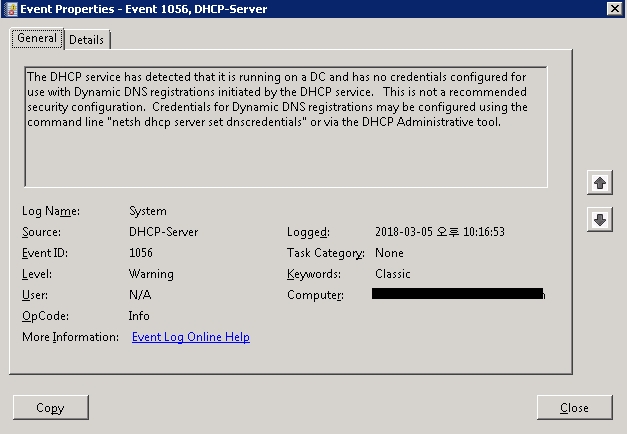
[EventID: 1056]
Source: DHCP-Server
The DHCP service has detected that it is running on a DC and has no credentials configured for use with Dynamic DNS registrations initiated by the DHCP service.   This is not a recommended security configuration.  Credentials for Dynamic DNS registrations may be configured using the command line "netsh dhcp server set dnscredentials" or via the DHCP Administrative tool.


[EventID: 7000]
Source: Service Control Manager
The True Last Logon Scheduler service failed to start due to the following error:
The service did not respond to the start or control request in a timely fashion.


[EventID: 7009]
Source: Service Control Manager
A timeout was reached (30000 milliseconds) while waiting for the True Last Logon Scheduler service to connect.


♔♔♔♔♔♔♔♔♔♔
댓글이나 의견은 언제든지 환영합니다.

Your Comments are Always Welcomed!
Share:

Tuesday, March 6, 2018


[Windows] Power management 에 있는 무선어댑터 설정(Wireless Adapter Setting) 변경하는 Registry & Group Policy Object GPO


Power management Wireless Adapter Settings Registry  & GPO


오늘은 '제어판\모든 제어판 항목\전원 옵션\전원 관리 옵션 설정 편집' 에 있는  '고급 전원 관리 옵션 설정 변경' 에서 '무선 어댑터 설정(Wireless Adapter Settings)'를 강제로 설정할 수 있는 방법에 대해 알아보려고 합니다. 

[Explanation]

Active Directory에 있는 Group Policy Object (이하, GPO)에 있는 기본 템플릿에서 설정을 할 수 없고 Registry 을 통해서만 적용이 가능합니다. 이에 대한 관련 경로 및 값을 설명드리겠습니다. 


우선 Power management 관련 registry 경로는 'HKEY_LOCAL_MACHINE\SYSTEM\CurrentControlSet\Control\Power\PowerSettings' 이고 각 경로별 의미하는 GUID는 아래와 같습니다. 

  • '19cbb8fa-5279-450e-9fac-8a3d5fedd0c1' : 무선 어댑터 설정 / Wireless Adapter Settings
  • 12bbebe6-58d6-4636-95bb-3217ef867c1a : 절전모드 / Powersaving modes
    • 0 : 최대성능
    • 1 : 최소절전
    • 2 : 보통절전
    • 3 : 최대절전

  • Default Power Scheme Values
    • 381b4222-f694-41f0-9685-ff5bb260df2e : Balanced / 균형조정
    • 8c5e7fda-e8bf-4a96-9a85-a6e23a8c635c :High Performance / 최대성능
    • a1841308-3541-4fab-bc81-f71556f20b4a : Power Saver /최대절전

이제 정책적으로 관리를 하려면 방법은 아래와 같습니다. 
  1. GPO에서 'Default Power Scheme Values'에 대한 각 옵션에 대한 값을 강제로 업데이트 시키는 정책(ACSettingIndex / DCSettingIndex 을 강제로 설정하도록 )을 만든다. 
  2. registry 실행하는 컴퓨터 정책을 만들어서 적용한다. 
  3. 하기 명령어를 메모장에 붙이고 cmd로 실행하도록 한다. (1,2 문구 삭제)
    1. powercfg -setacvalueindex 8c5e7fda-e8bf-4a96-9a85-a6e23a8c635c 19cbb8fa-5279-450e-9fac-8a3d5fedd0c1 12bbebe6-58d6-4636-95bb-3217ef867c1a 0
    2. powercfg -setdcvalueindex 8c5e7fda-e8bf-4a96-9a85-a6e23a8c635c 19cbb8fa-5279-450e-9fac-8a3d5fedd0c1 12bbebe6-58d6-4636-95bb-3217ef867c1a 0


♔♔♔♔♔♔♔♔♔♔

댓글이나 의견은 언제든지 환영합니다.

Your Comments are Always Welcomed!
Share:

Sunday, March 4, 2018


[Windows] Windows Server 2008 R2 Powershell (basically ver1.0) upgrade to ver3.0


Win2k8 R2 Powershell upgrade to ver 3.0


[Explanation]

기본적으로 Windows Server 2008 R2 (이하 WIn2K8)에 설치된 Powershell 버전은 ver1.0 입니다. 그렇기 때문에 파워쉘을 통해서 자동 스크립트로 구성하는데 ver 3.0 에 비해 제한적입니다. 이를 위해서 금번 포스팅에서는 ver 1.0을 ver 3.0으로 업그레이드 하는 방법에 대해 알아보도록 하겠습니다. 

1. WIn2K8 에 Powershell 기본 모듈 설치
우선 기본적으로 WIn2K8에서 Powershell 모듈이 기본 구성이 되어 있으나 안된 경우가 있기 때문에 아래와 같이 '서버 역할 및 기능'에 가셔서 'WIndows Powershell' 항목을 체크하여 기능을 추가합니다.  
 

2. Windows Management Framework 설치
이부분이 대부분 빠뜨리는 부분이실텐데요, Powershell ver 1.0이 설치되어 있다고 해서 바로 ver 3.0으로 업그레이드가 불가합니다. 업그레이드를 하기 위해서는 아래 링크를 가셔서 Windows Management Framework (Powershell ver 2.0으로 업그레이드) 를 설치하셔야 합니다.  Before installing Windows Management Framework 3.0 on Windows Server 2008, you must download and install the version of Windows Management Framework which includes Windows PowerShell 2.0, WinRM 2.0, and BITS 4.0 as a prerequisite. This version of Windows Management Framework is available at http://support.microsoft.com/kb/968929 


3. Powershell v3.0 모듈 업그레이드 2 단계까지 완료하셨으면 링크에서 Windows Server 2008 경우는 네모 표시한 (WMF3.0)에서 Bit에 따라 다운로드 받으셔서 실행하시면 됩니다. 기본적으로 재부팅이 필요하며, 비 업무시간에 진행하시면 됩니다. 


♔♔♔♔♔♔♔♔♔♔

댓글이나 의견은 언제든지 환영합니다.

Your Comments are Always Welcomed!
Share:

Tuesday, February 13, 2018


[Windows] Windows 10 한/영 전환키가 적용 안될 때의 가이드


Windows 10 한/영 전환키가 적용 안될 때 


[Explanation]

기본적으로 윈도우 10 환경에서는 연결된 장치에 대한 드라이버를 자동으로 인식하고 장치관리자(Device manager)에 가서 느낌표(!)로 된 드라이버를 자동 업데이트를 수행하면 수월하게 사용할 수 있습니다. 

하지만 금번 Windows 10 환경에서 키보드 드라이버를 장치관리자에서 삭제하고 재설치를 수행하고 'ctfmon.exe'을 레지스트리에 등록하는 방법도 수행하였지만 여전히 한영키 전환이 되지 않았습니다. 참고로 아래 방법은 ctfmon.exe의 레지스트리 키를 추가하는 방법입니다. 

메모장을 실행하고 하기 명령어를 복사 및 붙여넣기를 하고 파일형태를 '모든파일'로 변경한 다음에 'ctf.reg'라는 이름으로 생성합니다. 그리고 마우스 우측으로 해당 파일을 지정하고 열고 '관리자 권한으로 실행'를 선택합니다. 만약 안되면 수동으로 경로에 가셔서 레지스트리 키를 등록하시면 됩니다. 
Windows Registry Editor Version 5.00
[HKEY_LOCAL_MACHINE\SOFTWARE\Microsoft\Windows\CurrentVersion\Run] "CTFmon"="C:\WINDOWS\system32\ctfmon.exe"

하지만 그럼에도 불구하고 조치 되지 않은 윈도우 10 환경이시면 하기 항목을 하기 설정을 확인해보시기 바랍니다. 'Windows 설정>시간 및 언어>지역 및 언어'로 이동합니다. 


그곳에서 한국어 언어의 옵션을 선택하시고 '하드웨어 키보드 레이아웃' 항목에서 '레이아웃 변경'을 선택하시면 한글/영어 전환 및 한자 변환에 대한 설정 변경이 가능합니다. 


♔♔♔♔♔♔♔♔♔♔
댓글이나 의견은 언제든지 환영합니다.

Your Comments are Always Welcomed!
Share:

Friday, February 2, 2018


[Windows] 윈도우 제품군 EOS(End of support) 에 대한 정보


윈도우 제품군 EOS(End of support) 정보


[Explanation]

Microsoft 제품군에 대한 지원 종료(EOS, End Of Support)에 대한 정보는 MS 공식 사이트에서 제공을 하고 있습니다. 

예를 들어, Windows Server 2012 R2 Datacenter의 예를 들어 살펴보면, 아래과 같습니다. '수명 주기 시작 날짜 / 일반 지원 종료 날짜 / 추가 지원 종료 날짜 / 서비스 팩 지원 종료 날짜' 등 정보가 있습니다. 

  • 수명 주기 시작 날짜  : 제품군 출시 날짜
  • 일반 지원 종료 날짜 : 제품군 출시 날짜 + 5년
  • 추가 지원 종료 날짜 : 제품군 출시 날짜 + 10년
  • 서비스 팩 지원 종료 날짜


또한 제품에 대한 '수명 주기 시작 날짜 / 일반 지원 종료 날짜 / 추가 지원 종료 날짜 / 서비스 팩 지원 종료 날짜' 에 대한 상세적인 정보 역시 설명 되어 있습니다. 


매년마다 EOS 종료 예정인 제품군에 대해서는 별도로 공지를 하고 있습니다. 


댓글이나 의견은 언제든지 환영합니다.

Your Comments are Always Welcomed!
Share:

Monday, September 11, 2017


[Windows] 윈도우 Patch 설치 여부 확인하는 명령어


check installed a specific patch in a computer using CMD


[Explanation]
특정 패치에 대해 컴퓨터나 서버에 설치되었는지 확인을 하려면 보통 제어판>설치된 패치 항목에서 일일이 검색을 해야 한다. 하지만 보다 간단하게 적용할 수 있는 방법이 있었으니....
"시작 – 실행 – CMD 실행 " 하고 나서 아래 명령어 입력! 
wmic QFE Get HotFixID,InstalledOn | find "KBOOOOO" 
Ex) wmic QFE Get HotFixID,InstalledOn | find "KB4012215”
아래와 같이 설치되었다면 KB번호와 설치 날짜가 확인됩니다.


♔♔♔♔♔♔♔♔♔♔


댓글이나 의견은 언제든지 환영합니다.

Your Comments are Always Welcome!
Share:

Thursday, September 7, 2017


[Windows] HTTPERR 폴더 삭제 가능 여부


HTTPERR 폴더 삭제 가능 여부


[Explanation]
C드라이브 용량이 부족해서 확인해보니 로그성 파일이 많이 차지하고 있었다. C:\Windows\System32\LogFiles\HTTPERR의 폴더 용량이 전체 드라이브의 30%를 차지하고 있는데, 이 로그 파일들은 삭제 가능하나, IIS 에러 메시지가 쌓이는 폴더인지라 IIS 상태를 점검해 볼 필요가 있다. 


댓글이나 의견은 언제든지 환영합니다.

Your Comments are Always Welcome!
Share:

Sunday, August 27, 2017


[Windows] 이벤트 로그 수집하는 Powershell 구문 (event id, message 분류 가능)


이벤트 로그 수집하는 Powershell 구문 


[Explanation]

만능키로 이제 불리기 시작하는 파워쉘 관련하여 스크립팅 할 때마다 포스팅하려고 합니다. 오늘은 이벤트 로그를 보려고 할때 대부분 이벤트 뷰어 툴(eventvwr)을 통해서 보실 수 있지만 경우에 따라 event view가 WinRM을 많이 사용해서 로그 정보가 보이지 않을 때 하기 명령을 통해서 추출후 확인하시면 됩니다. 
하기 명령어를 하나씩 설명 드리면 조회 기간에 대해 설정하였습니다. 언제부터( $after) 언제까지($before) 생성된 이벤트 로그 중에서 'Security' 관련 이벤트 내용 중에서 'Event ID'가 4624이고 'Message' 내용 중에 특정 계정(id)가 잇는 정보만 추출하여 별도 파일로 저장하는 명령어 입니다. 

  • $after = Get-Date 07/19/17
  • $before =Get-Date 07/21/17
  • Get-EventLog -LogName security -After $after -Before $before   | Where-Object {$_.instanceID -eq  4624 -and $_.message -like '*id*'}  |ft -Property * -AutoSize -Wrap | Out-File C:\Users\administrator\Desktop\result.txt

추가적으로 관련 명령어 정보를 얻고 싶으시면, 이곳으로!

하지만 하기 이벤트 로그에는 Windows 하위 프로그램에 대한 이벤트 로그는 수집할 수 없기 때문에 이럴 경우에는 "GET-WinEvent" 통해서만 가능합니다. 예를 들어 살펴보면 아래와 같습니다. (하기 구문에서는 Event ID가 106, taskscheduler 등록한 이벤트에 한해서만 조회한다.)

  • $after = Get-Date 07/01/17
  • Get-WinEvent -FilterHashTable @{ LogName = "Microsoft-Windows-TaskScheduler/Operational"; StartTime = $after; ID = 106 } | select * | Export-Csv D:\text1.csv -Encoding "UTF8" -NoTypeInformation


 추가적으로 관련 명령어 정보를 얻고 싶으시면, 이곳으로!

♔♔♔♔♔♔♔♔♔♔

댓글이나 의견은 언제든지 환영합니다.

Your Comments are Always Welcome!
Share:

Thursday, August 24, 2017


[Windows] UAC 알림 기능 해제/설정 방법(UAC Notification Enable/Disable with Win Cmdlt)


UAC Notification Enable/Disable


[Explanation]

UAC 알림 때문에 매번 확인을 요청하는 경우 아래와 같이 레지스트리를 추가/수정하거나 cmd 명령어를 실행시키면 손쉽게 설정할 수 있다. 
[UAC 알림 끄기(UAC Notification Disable)]
HKEY_LOCAL_MACHINE\SOFTWARE\Microsoft\Security Center
Data Type:DWORD
Value Name:UACDisableNotify
Value:1

[UAC 알림 켜기(UAC Notification Enable)]
HKEY_LOCAL_MACHINE\SOFTWARE\Microsoft\Security Center
Data Type:DWORD
Value Name:UACDisableNotify
Value:0

[UAC 알림 끄기(UAC Notification Disable)]
C:\Windows\System32\cmd.exe /k %windir%\System32\reg.exe ADD HKLM\SOFTWARE\Microsoft\Windows\CurrentVersion\Policies\System /v EnableLUA /t REG_DWORD /d 0 /f

[UAC 알림 켜기(UAC Notification Enable)]
C:\Windows\System32\cmd.exe /k %windir%\System32\reg.exe ADD HKLM\SOFTWARE\Microsoft\Windows\CurrentVersion\Policies\System /v EnableLUA /t REG_DWORD /d 1 /f


♔♔♔♔♔♔♔♔♔♔


댓글이나 의견은 언제든지 환영합니다.

Your Comments are Always Welcome!
Share:

Tuesday, August 22, 2017


[Windows] Event Log를 필터링하기(XML을 통한 Custom View생성)


XML을 통한 Event 로그를 Custom View생성


[Explanation]
이벤트 메시지를 통해서 원하는 정보를 검색하기 위해서 기본적으로 해당 이벤트에서 Find 혹은 Filter Current Custom View 등을 이용하실텐데요, 보다 세부적인 이벤트 로그만을 filtering 하는 방법을 알아보겠습니다. 

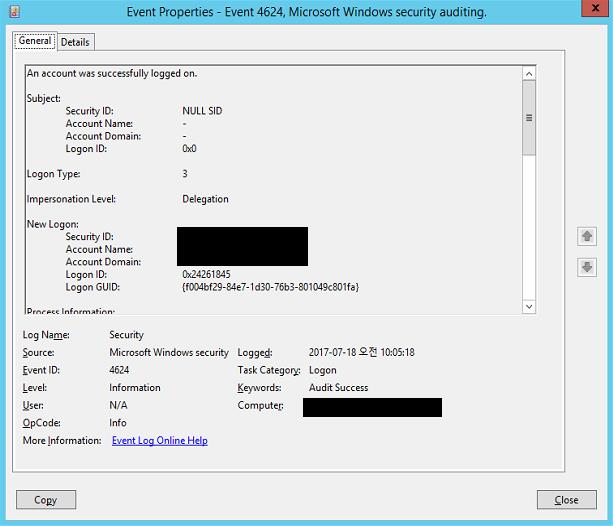
우선 오늘 테스트로 적용할 이벤트는 ID 4624이고 Logon Type이 '3' 입니다. 이벤트를 보면 제일 많이 보시는 화면이 'General'이지만, XML로 검색을 하려면 Details>XML View로 보셔야 합니다. 


XML View를 보시면 General에서 보셨던 화면이 그대로 보이시는데, 여기서 검색하려는 정보인 'LoggonType'을 3이 되도록 필터링을 생성해보겠습니다. 


기본적으로 Filter 화면에서 대략적인 이벤트 정보를 기입해두는 것이 XML을 편집할 때 보다 수월합니다. 그래서 저는 EventID에 대한 정보만을 선입력을 하니 XML에서 그 정보가 반영되어 보입니다. 


기본적으로 보이는 XML은 아래와 같습니다.
<QueryList>
  <Query Id="0" Path="Security">
    <Select Path="Security">*[System[(EventID=4624)]]
</Select>
  </Query>
</QueryList>


기본적으로 원하는 정보를 조회하기 위해서는 원하는 data를 선정하고 그에 대한 속성값을 지정해야 합니다. 여기서 원하는 data를 선정하는 것이 '*[EventData[Data[@Name='LogonType']]]'이고 그 중 속성값을 지정하는 것이 'and (Data='3')'입니다. 구조를 보면 'EventData 중에서 Data로 된 정보 중에서 @Name이 ~~인 애들을 찾아볼거야'라는 의미입니다.  
<QueryList>
  <Query Id="0" Path="Security">
    <Select Path="Security">*[System[(EventID=4624)]]
and
*[EventData[Data[@Name='LogonType'] and (Data='3')]] 

</Select>
  </Query>
</QueryList>


추가적으로 특정 id 혹은 특정 시간(예를 들어, 24시간) 이내에 로그온한 상대로만 추출을 하고 싶다면 아래와 같이 설정을 하면 된다. 
 <QueryList>
  <Query Id="0" Path="Security">
    <Select Path="Security">*[System[(EventID=4624)
and
TimeCreated[timediff(@SystemTime) &lt;= 86400000]]] and
  *
[EventData[Data[@Name='SubjectUserName'] and (Data='ad_iyamus' or Data='est9')]] and *[EventData[Data[@Name='LogonType'] and (Data='3')]]
</Select>
  </Query>

</QueryList>

이처럼 기존 이벤트에서 원하는 정보를 XML 보기로 확인 한 후 별도로 필터링을 설정하여 조회가 가능합니다. (참고자료)

♔♔♔♔♔♔♔♔♔♔


댓글이나 의견은 언제든지 환영합니다.

Your Comments are Always Welcome!
Share: